VST Bridge
Essentials
The Audiotool VST Bridge connects the web-based DAW to VST3 plugins on your computer, so instruments and effects you have installed locally can run inside Audiotool Studio while you work in the browser.
It is a native companion app that runs alongside the browser and carries audio and plugin processing on your machine. Splice INSTRUMENT is a typical example; other VST3 plugins work the same way.
Download & Install
Open the Hub and open the VST Bridge page.
Download VST Bridge for your platform.
Install the VST Bridge.
Windows
Double-click the downloaded file.
macOS
Double-click the downloaded file.
Linux
Download and extract the zip file containing the AppImage
Mark file as executable:
chmod +x <vst-bridge-file>.AppImageLaunch the app:
./<vst-bridge-file>.AppImage
Use VST Bridge
In your project, drag the VST Bridge device from the Device Browser into the timeline or studio.
On the device, select the VST3 plugin you want to connect.
Open to show the VST plugin window.
Save to store any VST3 change. Even collaborations are possible when all producers have the same plugin installed.
Note: When you add a plugin to the folder, in the VST Bridge app, click Re-scan to “discover” the new plugin.
Use Splice INSTRUMENT
Note: Splice INSTRUMENT is not supported on Linux.
Spitfire LABS is now part of Splice INSTRUMENT. The standalone LABS plugin is no longer available for download; install Splice INSTRUMENT instead. Free and paid LABS sounds are included in Splice INSTRUMENT.
Download and install Splice INSTRUMENT for Mac or Windows
Restart the VST Bridge
Open an Audiotool DAW session
Drag the Splice INSTRUMENT device from the plugin library into your timeline
Connecting
The DAW will generally inform you in case any action is required. You can even start the VST Bridge from the DAW with the “Connect” button in the bottom right corner.
The VST Bridge is ready to connect when it looks like this:
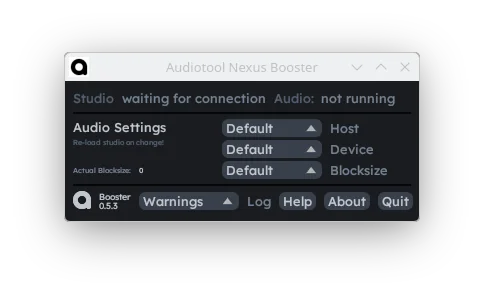
A session in the Audiotool DAW will try to connect to the VST Bridge on startup. If you already have the DAW open, reload the tab.
If the connection is successful, you can see the version number in bottom right.
And the VST Bridge will look like this:
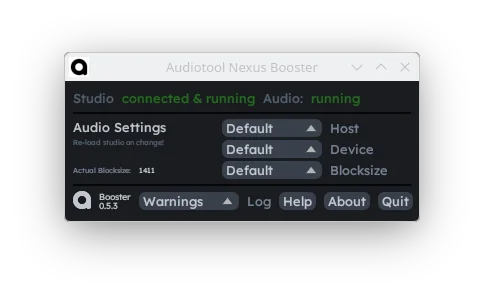
Note that an instance of the VST Bridge can only connect to one session at a time.
Troubleshooting
Latency Issues |
You can potentially reduce general recording- and input latency by choosing the correct settings in the
Audio recording latency can be worse with the VST Bridge than without, even with ideal block size and input latency correction. We’re working on this issue. |
|---|---|
VST Bridge not detected |
The VST Bridge can connect to at most one Audiotool DAW session at a time, and the DAW will only attempt connection on startup. If restarting the VST Bridge and the DAW doesn’t help, please submit a bug report! |
Linux Audio Issues |
The VST Bridge currently requires Jack, ALSA, or PulseAudio to be installed. The best latency is achieved with Jack. If you use PipeWire, you can use wrappers such as |