Automation Editor
Essentials
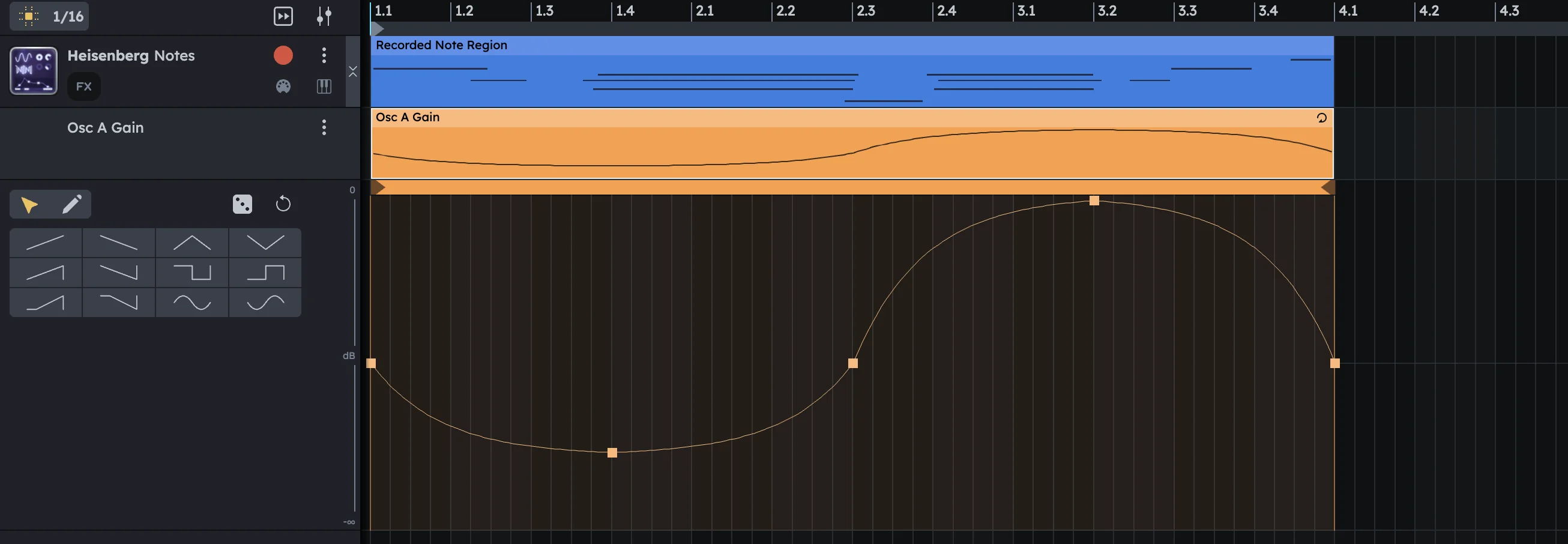
Automation Editor changes any parameter over time—filter cutoff, effect mix, pan, volume, and more. Automation lives directly on the Timeline inside Regions, with each parameter getting its own track for precise control. Perfect for filter sweeps, volume fades, and evolving sounds.
Draw automation curves point-by-point for precise control
Record automation in real-time by moving parameters
Preset shapes and randomization for quick results
Precise curve control between points
Write & Edit Automations
Create automation curves manually by writing and editing points step by step.
Add your automation track.
Timeline: Right‑click any lanes header (left column) and select the parameter you want to automate.
Studio: Right‑click any knob, slider, button, or fader on a device and choose Automate to add an automation track.
Mixer: Right‑click most mixer controls and choose Automate to add an automation track.
Double‑click inside the automation track to create a region.
Double‑click the automation region to open the detailed editing space.
(Optional) Use a preset shape or random for quick automation curve creation.
Add and edit automation points.
Double‑click to add points on the curve
Drag points to move them
Drag lines between points to control the curve
Select points and press Delete/Backspace to remove them
Double‑click the region to close the editor.
Record Automations
Capture live parameter movements while the song plays for natural, expressive automation.
Press Record in the top bar.
While the song plays, Drag the control you want to automate. The automation track and region is created automatically.
Stop recording when finished.
Fine-tune the recorded automation.
Double‑click the region to open the editor
Adjust points, apply shapes, or add randomization as needed
Beginner Tip
Beginner Tip
Record for vibe, edit for precision—capture the feel live, then polish the details manually.
Tools
The Automation Editor offers two specialized tools for different editing tasks:
V Cursor (default) |
The default tool to add,select, move, and edit automation points. |
|---|---|
D Draw |
Click and Drag to draw smooth curves |
Practical Tips
Practical Tips
Start with preset shapes, then fine-tune individual points for precise control.
Layer multiple parameters (filter + reverb + volume) for complex, evolving sounds.
Use randomization sparingly to break up mechanical patterns without losing control.
Record for vibe, edit for precision—capture the musical feel live, then clean up timing.
Automate filter sweeps for classic build-ups and breakdowns.
Increase reverb mix during transitions for smooth, atmospheric changes.
Use pan automation for dynamic stereo movement and interest.
Apply subtle volume automation to add life to static parts.