Groups
Essentials
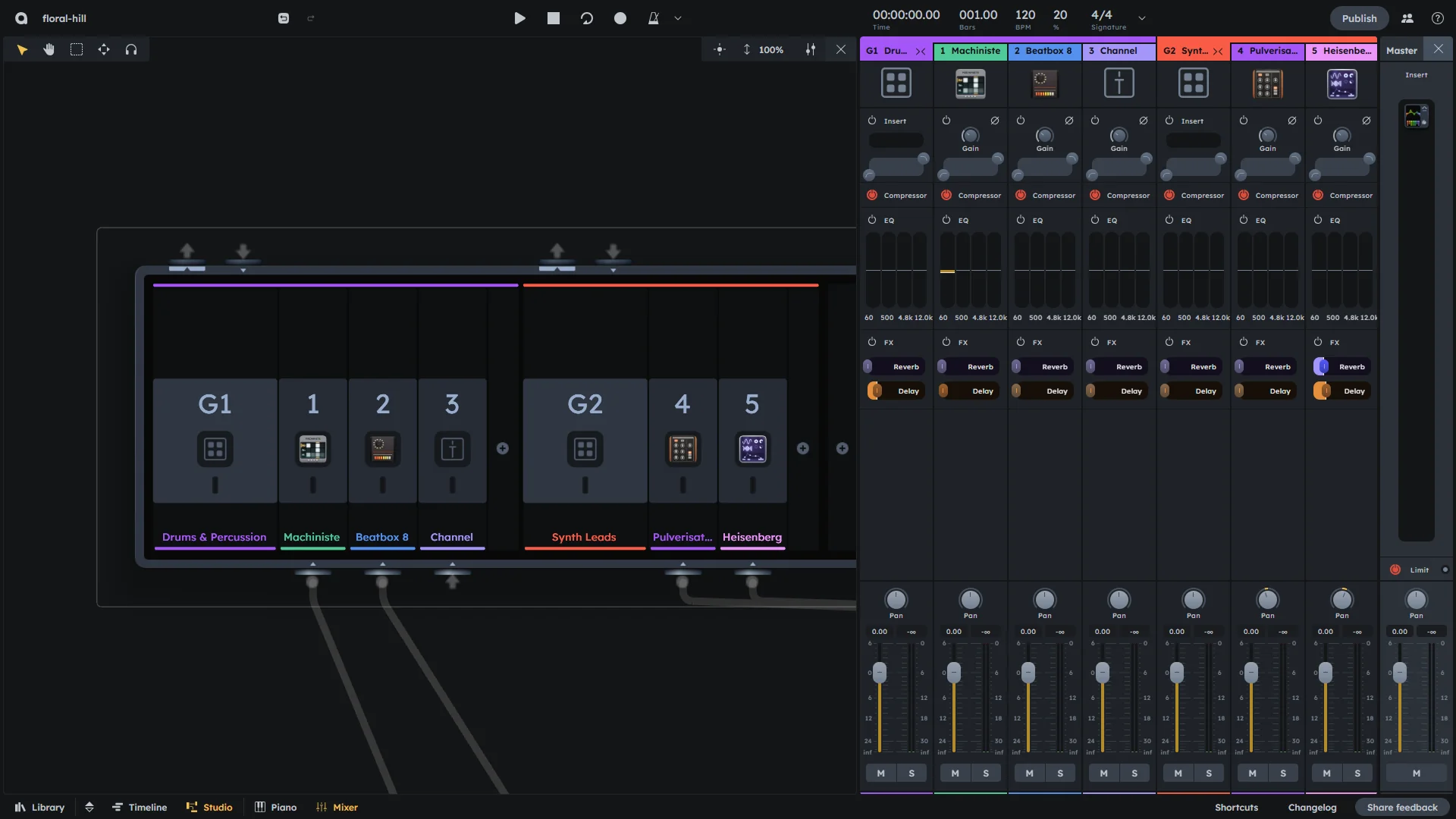
Group channels combine multiple tracks for shared processing and control. Select multiple mixer channels and press Cmd+G (Ctrl+G) to create a group. Use groups to process multiple tracks together (like all drums or all vocals) with shared compression, EQ, and effects.
Shared compression and EQ for grouped tracks
Built-in reverb and delay sends
Custom effects via Stagebox insert
Volume and pan control for entire groups
One fader controls all tracks in the group
Why Use Groups?
Groups are essential for efficient mixing workflows:
Shared effects |
Add the same effect to multiple tracks (e.g., reverb on all vocals). |
|---|---|
Volume control |
Control the overall volume of multiple sounds together. |
Processing efficiency |
Apply compression or EQ to multiple tracks simultaneously. |
Organization |
Keep related tracks grouped together for easier management. |
Controls
Groups contain almost the same modules as regular mixer channels, except for gain:
FX Insert |
Custom effects processing slot via the Stagebox (see Stagebox). |
|---|---|
Compressor |
Same compression controls as regular channels for dynamic control of grouped tracks (see Compressor). |
Equalizer (EQ) |
Same 4-band EQ for frequency shaping of the grouped signal (see Equalizer (EQ)). |
FX Sends |
Built-in reverb and delay, plus custom effects via Stagebox (see FX Sends). |
Volume & Pan |
Master volume and pan control for all tracks in the group (see Volume & Pan). |
Grouping
Select multiple mixer channels by holding Shift and clicking on mixer headers.
Press Cmd+G (Mac) or Ctrl+G (Windows/Linux) to create the group.
The group channel will appear with all selected channels routed to it.
Ungrouping
Select the group channel you want to ungroup by clicking on the group header.
Press Shift+Cmd+G (Mac) or Shift+Ctrl+G (Windows/Linux) to ungroup.
The group channel will be removed and all channels will return to their individual state.
Nesting
Groups can be nested inside other groups, creating hierarchical structures for complex mixing workflows.
You can nest groups in two ways:
Using the grouping method: Select multiple channels or existing groups, then press Cmd+G (Mac) or Ctrl+G (Windows/Linux) to create a new group containing them.
By dragging: Drag channels or groups in the mixer to move them into or out of existing groups.
Nested groups allow you to apply mixing processing at multiple levels. For example, apply compression to all drums as a group, then apply additional processing to the entire drum group along with other instruments for overall balance and cohesion.
Examples
Drums
Group all drum tracks together for:
Compression |
Apply bus compression to glue the drum kit together. |
|---|---|
EQ |
Shape the overall drum sound with group EQ. |
Effects |
Add room reverb or parallel compression via the insert point. |
Vocals
Group vocal tracks for:
Compression |
Apply consistent vocal compression across all vocal parts. |
|---|---|
Effects |
Add shared reverb or delay to create vocal space. |
Volume |
Control overall vocal level in the mix. |
Instruments
Group similar instruments for:
Processing |
Apply the same EQ or compression to multiple instruments. |
|---|---|
Effects |
Add shared effects like chorus or reverb. |
Balance |
Control the overall level of instrument groups. |
Practical Tips
Practical Tips
Use groups for drums, vocals, or instruments that need shared processing.
Apply bus compression to groups to glue similar elements together.
Use the group insert point for parallel processing effects.
Keep group levels balanced before applying group processing.
Consider using groups for stereo width and spatial effects.