Spitfire LABS
Essentials
LABS device bridges Audiotool with Spitfire Audio’s LABS plugin via the Audiotool Booster. Sequence MIDI in Audiotool, open the LABS UI through the Booster, and route audio back into your project. Perfect for accessing Spitfire’s free sample libraries and instruments within Audiotool.
Integration with Spitfire LABS plugin
Requires Audiotool Booster
Sequence MIDI in Audiotool
Access LABS UI through Booster
Use Spitfire’s free sample libraries and instruments
The Spitfire LABS device brings the power of Spitfire Audio’s LABS instruments into Audiotool. It works in combination with the Audiotool Booster, which hosts the actual VST plugin outside the browser. Inside Audiotool, the LABS device acts as a connector: it receives notes and outputs audio into your Studio project.
Visual Layout
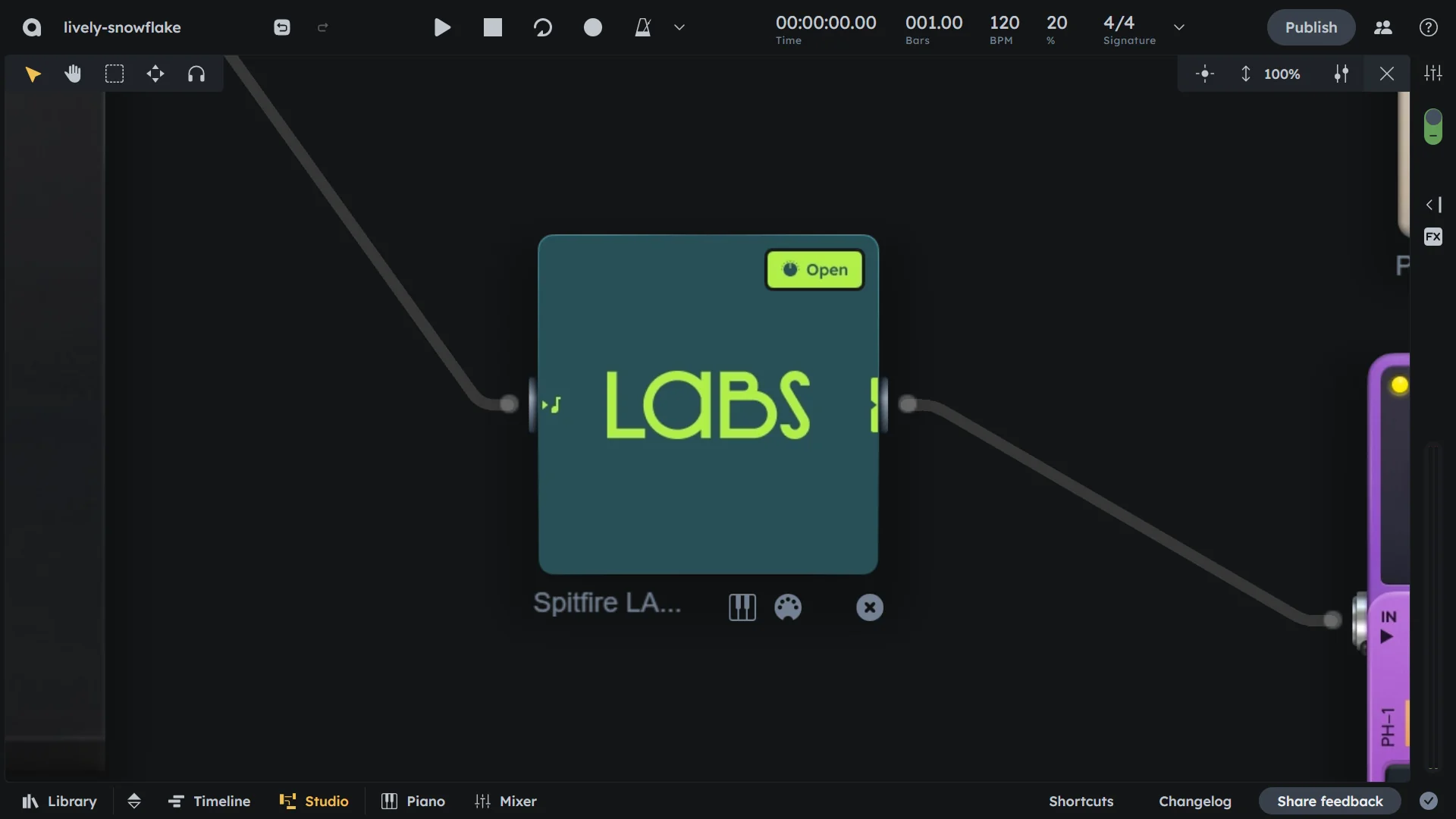
When you add the LABS device to your Studio (see Device Browser), it appears as a simple box with the LABS logo:
Left Side (Input) |
Note input. You can connect sequencers, MIDI tools, or the on-screen piano. |
|---|---|
Right Side (Output) |
Audio output. Connect to the mixer or other devices. |
LABS Logo |
Large central logo to identify the plugin. |
Open Button (top-right) |
Launches the LABS plugin window via the Audiotool Booster. |
Timeline Track
When you create a LABS device, a timeline track is automatically added. This track works exactly like with Audiotool’s other synthesizers:
MIDI regions |
Add to the track in the Timeline |
|---|---|
MIDI Editor |
Draw or edit notes |
Piano roll |
Sequence melodies, chords, or rhythms |
This makes LABS seamlessly integrate into your workflow, just like Pulverisateur, Heisenberg, or Machiniste.
How It Works
The LABS device appears in the Device Browser inside Audiotool, just like any other instrument.
Device availability |
The LABS device is always available in the Device Browser. |
|---|---|
Booster requirement |
The device will only function when the Audiotool Booster is installed and running. Without the Booster running, LABS will not produce sound. |
Note Input |
Audiotool Note Input: Accepts notes from sequencers, the Tonematrix, or arpeggiators inside Audiotool. |
Audio Output |
Audio Output: Sends the sound generated by LABS into the mixer or any effects chain in the Studio. |
Plugin interface |
When you open LABS, its plugin interface is displayed by the Audiotool Booster, not in the browser. The plugin interface and sound libraries are managed entirely inside the Audiotool Booster. |
Requirements
To use LABS in Audiotool, you need to set up the following:
Install the Audiotool Booster app (see Booster for download and installation instructions).
Sign up for a free Spitfire Audio account.
Install the Spitfire LABS plugin on your system through Spitfire Audio’s application.
Download at least one LABS sound library using the Spitfire software.
Once complete, you can load LABS inside Audiotool and control it like any other device.
Workflow
Set up and use LABS with Audiotool step by step.
Start the Audiotool Booster (close all Studio browser tabs before starting).
Open Audiotool Studio in your browser.
Drag the LABS device from the Device Browser into your Studio.
A timeline track will appear for sequencing MIDI.
Press Open on the device box to launch the plugin in the Booster.
Load an instrument inside the LABS plugin window.
Write MIDI notes on the timeline to play the selected LABS instrument.
Route the audio output into the Mixer or other devices.
Practical Tips
Practical Tips
Layer LABS instruments with Audiotool synths.
Use Audiotool’s Arpeggiator or Tone Matrix to trigger LABS sounds.
Apply Audiotool effects (reverb, delay, EQ, etc.) after the LABS device output.
Troubleshooting
LABS no sound |
If LABS does not produce sound: Make sure the Booster is running in the background. Confirm that LABS is installed via the Spitfire Audio app and at least one sound library is downloaded. |
|---|
Notes
Bridge device |
The LABS device in Audiotool is only a “bridge.” The actual instrument interface runs in the Audiotool Booster. |
|---|---|
Supported plugins |
Currently, LABS is the only supported VST3 plugin. |
Plugin management |
The plugin interface and sound libraries are managed entirely inside the Audiotool Booster. |