Samples
Essentials
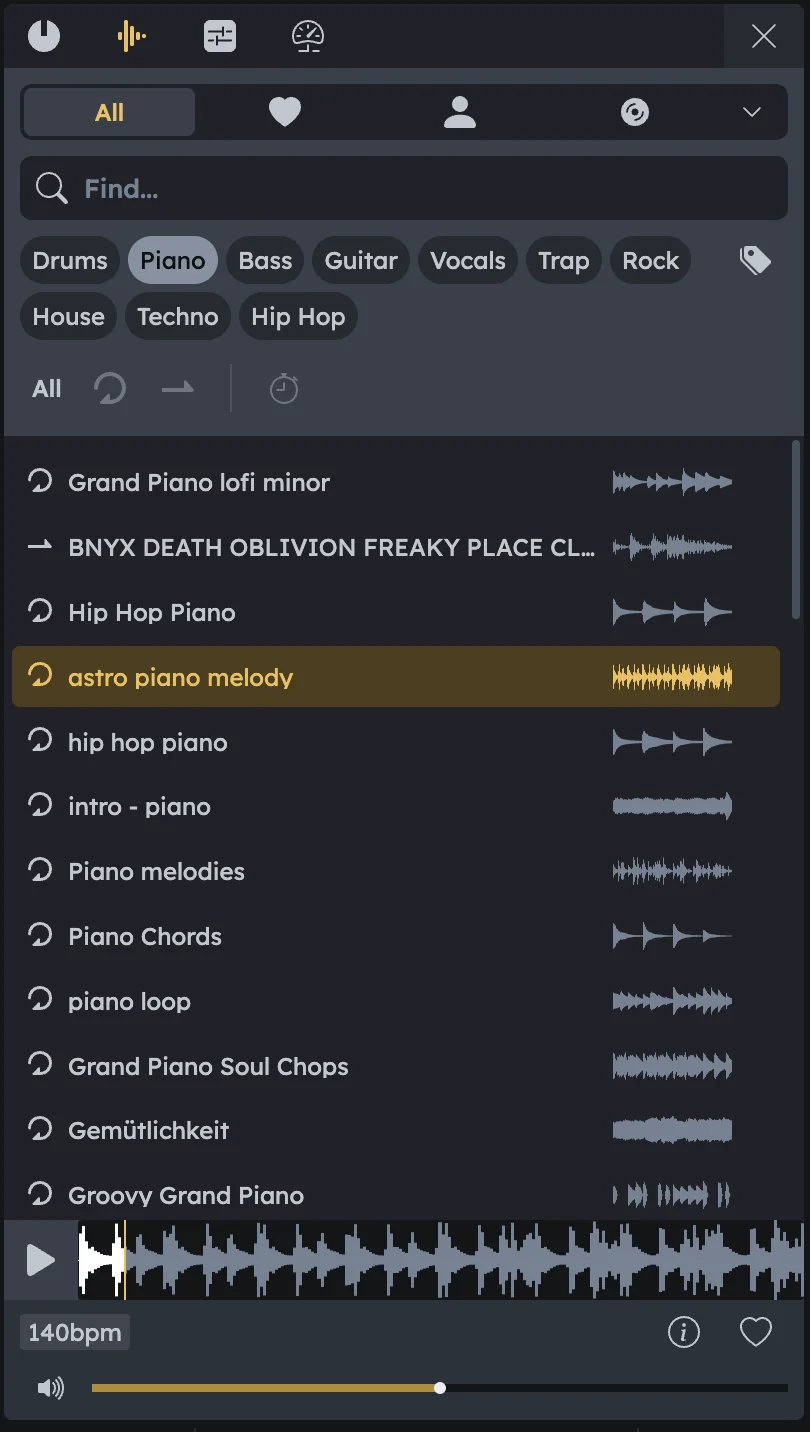
Sample Library provides access to thousands of curated loops, one-shots, and sound effects. Located in the left panel, you can search, preview (samples auto-preview when selected), and drag samples directly into your Timeline or into sampler devices like Machiniste.
Thousands of curated samples (loops, one-shots, sound effects)
Search and category filters
Direct drag-and-drop to Timeline or samplers
Auto-preview with waveform display when selected
Browsing the Library
Tabs at the Top |
All: Shows the complete sample collection. Heart (Favorites): Displays the samples you’ve marked as favorites. User (My Uploads): Samples you uploaded to your account. Waveform Icon (In Project): Lists the samples currently used in your project. |
|---|---|
Category Filters |
Quickly narrow down your search with tags like Drums, Piano, Bass, Guitar, Vocals, Trap, Rock, House, Techno, etc. |
Search Bar |
Type in keywords to find a specific sound. |
Type Filters (bottom left) |
All: Show every available sample. Loop Icon: Show only looped samples. When selected, a BPM field appears. This shows the default project tempo but can be adjusted manually if you want to time-stretch loops to a different BPM. One-Shot Icon: Show only single-hit samples such as drum hits, stabs, or effects. |
Sample Preview
Auto-Preview |
When you click on a sample, it plays automatically once. |
|---|---|
Preview Waveform |
Shown at the bottom of the panel. |
Volume Slider |
Adjusts playback volume for preview only. |
Loop/Playback Controls |
Toggle whether the sample loops during preview or only plays once. |
Favorites |
Click the heart icon to add the sample to your favorites list. |
Sample Info |
Clicking the info icon (bottom right of preview) opens details about the sample, including: Tags (vocal, snare, fx etc.). Licensing (e.g., “royalty free”). Collection (e.g., Garage and Bassline by Loopmasters). Curated labels for official selections. |
Using Samples
Drag & Drop |
Into the Timeline → creates an Audio Track with the sample as a region (see Audio Editor). Onto a sampler device (e.g., Machiniste, Sampler) → loads the sample into the device for sequencing (see Machiniste Manual). |
|---|
Workflow Example
Open Library |
Open the Library panel. |
|---|---|
Select category |
Select a category tag such as Vocals or Bass. |
Choose type |
Use the type filters to decide whether you want loops or one-shots. If Loops is selected, check the BPM field and adjust it if you want to stretch the loop independently of the project tempo. |
Preview sample |
Click a sample — it will automatically play once for preview. |
Favorite if useful |
If useful, favorite it for quick access later. |
Drag to project |
Drag it into the Timeline or into a sampler device. |
Edit further |
Edit it further (stretch, pitch, fades) by double‑clicking the region in the Timeline to open the Audio Editor (Audio Editor). |